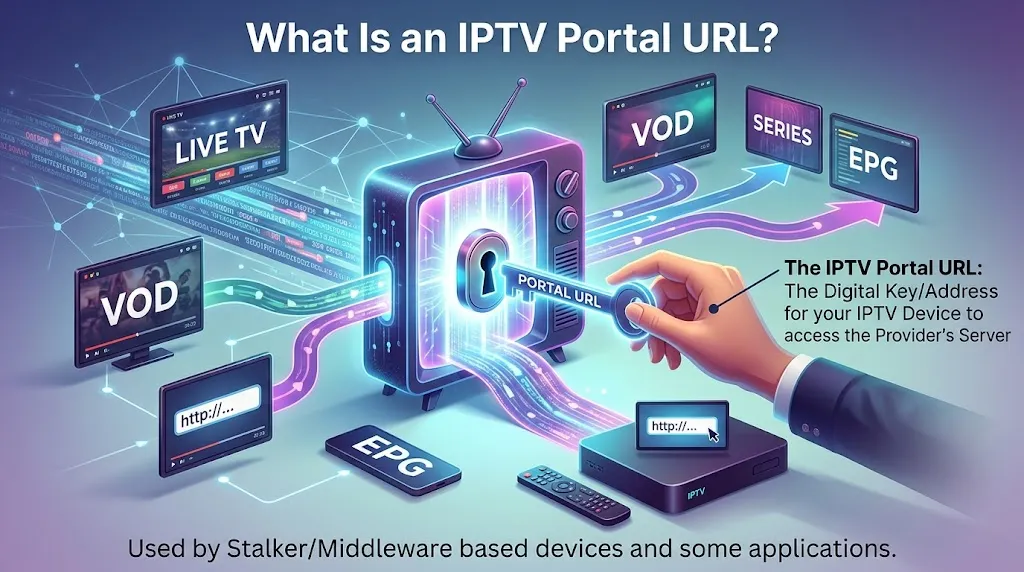
When you buy an IPTV subscription for the first time, the activation message can read like a different language. Along with a username and password, there's usually a line called "server URL" or "portal URL", and sometimes a completely separate M3U link on top of that. If you've never set up IPTV before, it's easy to assume you did something wrong. You didn't. This is just how most providers hand out login details, and once you know what each piece does, setting up a new device takes about two minutes.
What a portal URL actually is
In short, an IPTV portal is the server your player app connects to, and the portal URL (also called a portal link) is the address that takes your app there.
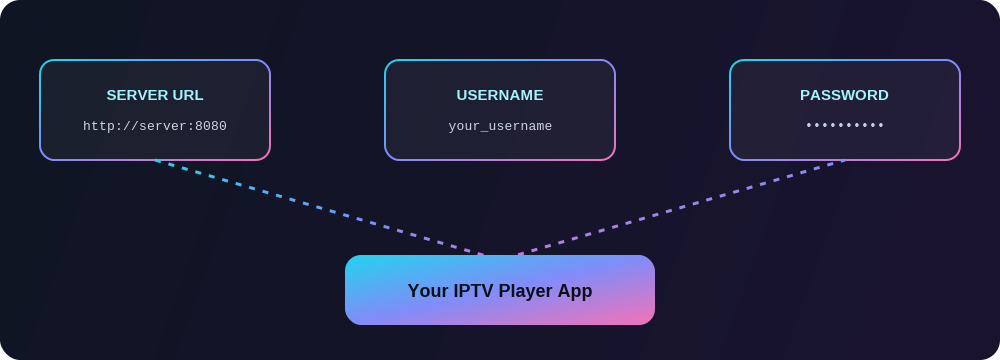
A portal URL, also called a server URL (and occasionally just "host" in some apps), is simply the web address of the server that streams your channels. It's one of three pieces of information your provider gives you, alongside a username and password. Together they work the same way a normal website login does: the URL tells your device where to connect, and the username and password prove you're allowed in once you get there.
Most portal URLs look something like this:
http://yourserver.example.com:8080
The number after the colon is the port number, and it has to match exactly for the connection to work. If your provider gives you a URL without a port number, leave it out. Don't add one yourself, and don't remove one if it's there. Small details like this are the reason a login that looks correct on screen still fails to connect.
Is a portal URL the same as Xtream Codes or Stalker?
Not quite, though they're closely related and easy to mix up. Xtream Codes and Stalker (also called Ministra) are two different pieces of server software that IPTV providers use to manage and deliver subscriptions. Both hand out a portal URL as part of your login, but they organize things slightly differently. If you've seen "Ministra player portal address" in a device menu, that's the same idea: the address of the server your box should load.
Xtream Codes is the more common format today and is what most player apps expect when they ask for "Xtream Codes API" login. Stalker/Ministra middleware is older and is mostly associated with MAG boxes and some Enigma2 satellite receivers, where it's simply labelled "Portal URL" in the device settings with no separate username and password fields, since those get tied to the device's MAC address instead. If your device came with a portal URL and nothing else to type in, that's usually Stalker-based.
Portal URL vs M3U link: what's the difference
This is where most of the confusion starts. Depending on your provider, you might get two different formats and have to pick one.
- Xtream Codes format splits everything into three separate fields: server URL, username and password. You type each one into its own box in the app.
- M3U format bundles all of that into a single long link, with your username and password built right into the address, something like http://yourserver.example.com:8080/get.php?username=you&password=pass&type=m3u_plus.
Both connect to the exact same subscription and the exact same channels. The only real difference is how your player app expects the information typed in. Apps like IPTV Smarters Pro and TiviMate support both formats as separate login options, so use whichever one your provider actually sent you rather than trying to convert one into the other.
Where you'll be asked for a portal URL
Not every device asks for this information the same way.
- MAG boxes and Android boxes running Stalker middleware ask for a "Portal URL" directly in their system settings, with no separate login step. The box itself is usually what's tied to your subscription.
- Smart IPTV on Samsung and LG TVs works differently again. You activate your TV's MAC address on the Smart IPTV website first, then load your playlist from there rather than typing a portal URL straight into the TV.
- Apps like IPTV Smarters Pro, TiviMate and GSE Smart IPTV let you choose Xtream Codes API and fill in the three fields, or paste an M3U link instead, whichever your provider gave you.
If you're setting up a new device and aren't sure which category it falls into, our installation guide shows how to set up IPTV step by step, with the exact steps for Fire Stick, Android TV, iPhone, Smart TV and more, matched to the app each device actually uses.
How to find your portal URL
If you're wondering "what is my portal URL" after buying a subscription, check the activation email or WhatsApp message you received first. The portal URL, sometimes labelled server address, host URL or just "URL", sits right next to your username and password. Inside a player app that's already set up, it's usually shown under account or playlist settings, which is handy when you want to add the same IPTV portal login to a second device.
If you can't find it anywhere, ask your provider's support to resend it. Don't try to guess the address or copy one from a forum, since a portal URL only works with the login details issued for your own subscription.
How to enter it step by step
The process is nearly identical across most apps:
- Open your IPTV player and look for "Add user" or "Add playlist".
- Choose Xtream Codes API, or "Login" if that's the only option shown.
- Paste your server URL exactly as it was sent to you, including http:// and the port number.
- Enter your username and password.
- Save, and give it a minute to load your channel list.
If you were given an M3U link instead, select the M3U option in your app and paste the full link into that single box. A few apps also ask for a separate EPG URL to load the program guide; if your provider sent one, add it in the EPG or guide settings rather than the main login screen.
Why your portal URL sometimes stops working
A portal URL that worked yesterday and doesn't today is almost always one of a handful of things, and it's worth checking them in order before assuming something bigger is wrong.
- The subscription expired. This is by far the most common reason, so check your renewal date before anything else.
- A typo crept in somewhere. Copy and paste the URL instead of typing it out by hand, especially on a TV remote where it's easy to miss a character.
- http got swapped for https, or the other way around. It has to match exactly what your provider sent, even though the two look almost identical.
- The port number got dropped or changed during setup. Double check it's still there and hasn't been auto-corrected by your device's keyboard.
- Your provider changed servers, which happens occasionally on the provider's end and means support will need to send you an updated portal URL.
If you've checked all of that and it still won't connect, message your provider's support rather than resetting your device repeatedly. A quick chat with them is usually faster than restarting your router five times, and they can tell you immediately if the issue is on their end.
Does the portal URL affect picture quality?
No, and this trips up a lot of people. The portal URL only controls where your device connects, not how the video looks once it gets there. Picture quality depends on the plan you bought, the server's own capacity, and your own internet speed. Two people using the exact same portal URL on the same subscription can get different results if one has a much slower connection than the other.
A quick way to remember the difference
| Term | What it includes |
|---|---|
| Portal URL / server URL | The server address only, no login info attached |
| Xtream Codes login | Portal URL + username + password, entered in separate fields |
| M3U link | Portal URL + username + password, combined into one link |
Once you've entered your portal URL correctly on one device, adding a second or third takes the same two minutes, since you're reusing the exact same details (unless your plan limits how many screens can stream together). If you're still deciding which app to actually use it in, our guide to the best IPTV players breaks down which one fits your device. And if you're still comparing providers and want one that sends clear setup instructions with no guesswork, buy an IPTV subscription with a free trial included, so you can test everything before committing to a longer plan.