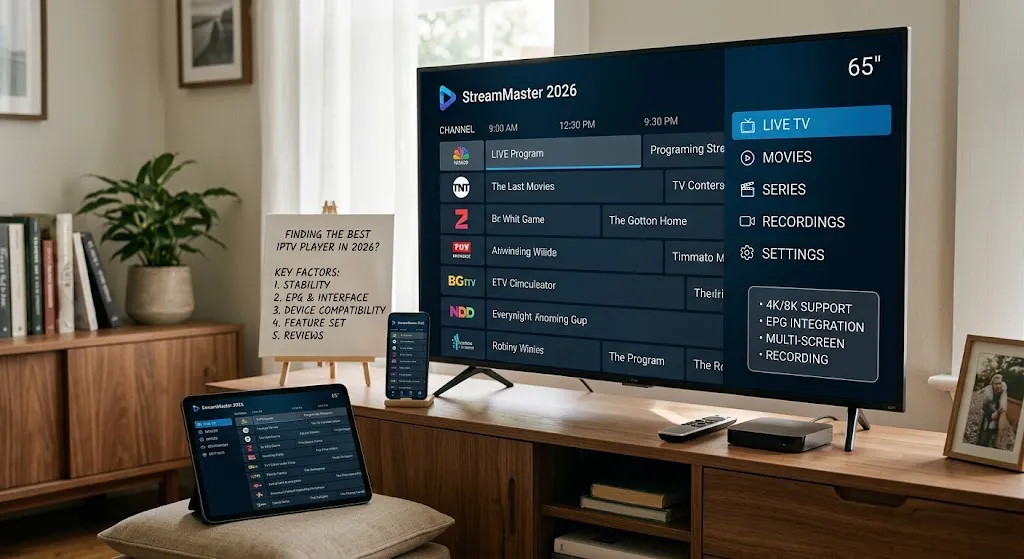
Buying an IPTV subscription gets you the channels. It doesn't get you an app to watch them in. That second piece, the player, is what actually loads your channel list, builds your TV guide, and decides how everything looks on screen. A lot of people don't realize these are two separate things until they're staring at a login screen with nowhere to type their details. The good news is most IPTV players are free, well built, and take a few minutes to set up. Here's an honest look at the ones worth using in 2026, and which device each one suits best.
What an IPTV player actually does
An IPTV player, sometimes called IPTV software or an IPTV app, takes the login details from your subscription, either a server URL with a username and password, or a single M3U link, and turns that into an organized channel list with a program guide, search, favorites, and usually a way to watch shows on demand too. Without a player, your subscription details are just text with nowhere to type them. The subscription and the player are sold and maintained separately, which is why switching to a new player app never means buying a new subscription.
What to actually look for in a player
Before comparing specific apps, it helps to know what separates a good one from a basic one. A few features matter more than the rest:
- EPG support, meaning a proper program guide that shows what's on now and later, not just a bare list of channel names.
- Catch-up or on-demand support, so you can watch something that already aired instead of only live channels.
- Multiple playlist support, useful if you ever keep more than one subscription active at the same time.
- A remote-friendly layout if you're using a TV box or Fire Stick, versus a touch-friendly layout on phones and tablets.
- Parental controls, if you want to lock certain channels or categories behind a PIN for kids using the same device.
Not every app does all of this well, which is exactly why the right choice depends on your device rather than a single universal "best" app. A player that feels great on a big screen with a remote can feel clunky on a phone, and the other way around.
IPTV Smarters Pro
This is the closest thing to a universal option. It runs on Android, iOS, Windows, Mac, Fire Stick and most Smart TVs, using the same login on every device. The layout separates live channels, movies and series clearly, it supports EPG and catch-up where your provider offers it, setup takes about two minutes, and it's completely free. If you only want to install one app and use it everywhere, this is usually the one.
TiviMate
TiviMate is built specifically for Android TV boxes, Google TV and Fire Stick, which makes it the best IPTV player for Android on a big screen, and it shows. The TV guide is easier to read from across the room, navigation feels made for a remote control instead of a touchscreen, and it supports multiple playlists if you ever run more than one subscription. The free version covers what most people need; a paid Premium tier, priced as a small one-time or yearly fee, adds extras like cloud-based recording and a picture-in-picture channel bar. The catch is it's Android only, so it won't help you on an iPhone or a Windows PC.
GSE Smart IPTV
GSE is the flexible option. It accepts nearly every playlist format you'll come across, plus multiple EPG sources at once, which makes it a useful fallback when another app refuses to load a particular provider's format. It's also one of the few players with a genuinely usable iOS version that isn't a stripped-down copy of the Android app. The interface looks a little more technical than Smarters or TiviMate, but the extra format support genuinely helps if you ever switch providers or run into a playlist another app can't parse.
Smart IPTV (for Samsung and LG TVs)
If you're setting up directly on a Samsung or LG Smart TV without a separate streaming box, Smart IPTV, often shown as SS IPTV, is usually the best IPTV player for Samsung Smart TV models and LG alike. It works differently from the others: instead of typing in login details on the TV itself, you activate the app using your TV's MAC address on the Smart IPTV website, then load your playlist from there. It's an extra step compared to a normal login screen, but it's the standard way to get IPTV running on a TV that doesn't support the usual Android-based apps.
VLC
VLC isn't built for IPTV specifically, but it plays M3U links without any setup at all, on practically any device, including ones that can't run a dedicated IPTV app at all. There's no channel guide, no favorites, no polish, just a straightforward way to check that a playlist link actually works before installing something more full-featured. It's a useful backup and a quick troubleshooting tool, not a long-term way to watch day to day.
It's also worth keeping installed even after you settle on a main player, purely for troubleshooting. If a channel won't load anywhere else, opening the same link in VLC tells you within seconds whether the problem is your provider's stream or something wrong with the other app's settings.
What about Kodi?
Kodi comes up a lot in IPTV discussions, but it's a general media center, not an IPTV player by default. To use it for live TV, you need to add a separate PVR client add-on and configure it with your M3U or Xtream details, which is a more technical setup than any of the apps above. It's a solid option if you're already using Kodi for other media and don't mind the extra configuration, but it's not the easiest starting point if IPTV is the only thing you're trying to watch.
Which IPTV player is best for your device
If you'd rather skip the comparison and just pick something, this covers most setups:
| Device | Recommended player |
|---|---|
| Fire Stick / Fire TV | TiviMate or IPTV Smarters Pro |
| Android TV Box | TiviMate |
| iPhone / iPad | IPTV Smarters Pro or GSE Smart IPTV |
| Samsung / LG Smart TV | Smart IPTV (SS IPTV) |
| Windows / Mac | IPTV Smarters Pro |
| Quick test on any device | VLC |
Setting up your chosen player
Once you've picked an app, the setup is almost always the same: open it, choose "Add user" or "Xtream Codes API", and enter the IPTV portal URL, username and password from your subscription, or paste your M3U link if that's what you were given. Our installation guide has exact steps for Fire Stick, Android TV, iPhone, Samsung, LG and more if you'd rather follow along screen by screen instead of guessing where each setting lives.
There's no single "best" player for everyone, only the one that fits the device you're actually using. Pick based on your hardware first, then decide if you want extras like recording or multiple playlist support. If you don't have a subscription to test any of this with yet, buy an IPTV subscription with a free trial and try a couple of these apps side by side before settling on one. Still comparing providers? Our guide to the best IPTV subscription worldwide covers what to check first.